Sessions
Open Sub Accounts → select a location → Sessions tab.
After onboarding, one of the first operational tasks is creating a WhatsApp session and linking it with QR.
What a session is
A session is a WhatsApp number connected to a sub-account (a GHL location). Think of it as the “phone line” that WhatGHL uses for that location.
- Inbound: messages that arrive on that WhatsApp number are received by WhatGHL and can appear in GoHighLevel.
- Outbound: automations, workflows, and manual replies from GHL are sent through an active session.
- One sub-account, several sessions: you can link more than one WhatsApp number to the same location (for example sales and support). Each number is a separate session.
Without at least one active session, that sub-account cannot send or receive WhatsApp through WhatGHL.
Typical flow
- Open Sub Accounts and select the location.
- In the sub-account detail, open the Sessions tab.
- Click Add session, give the session a clear name, and confirm creation.
- Open the QR code shown on screen.
- On the phone with that WhatsApp number, go to Settings → Linked devices (or WhatsApp Web) and scan the QR.
- Wait until the session status in WhatGHL shows as active or connected.
The first session of a sub-account usually includes a 5-day free period so you can validate the setup before full billing. Your organization may adjust trial policies — always check what the UI shows for that sub-account.
Video walkthrough
Create a new WhatsApp session for a sub-account and link it by scanning the QR code.
QR management tips
- Expired QR: codes are time-limited. If it expires before you scan, use refresh or regenerate on the same screen and scan the new code.
- Stable connection: use reliable Wi‑Fi or mobile data on the phone while scanning; a weak connection often causes failed pairing.
- Correct number: scan with the phone that owns the WhatsApp account you want to link — not another line on the same device unless that is intentional.
- Do not duplicate: if a session is reconnecting, wait before creating another session for the same number; duplicates can confuse routing and billing.
- Keep the phone online: the linked device should stay connected to the internet so the session remains healthy.
Linked session screen
Once WhatsApp is linked, each session appears as a card on the Sessions tab (name, phone number, creation date, and action buttons). The screenshot below shows a session already connected. Match each colored marker in the legend with the same color on the image:
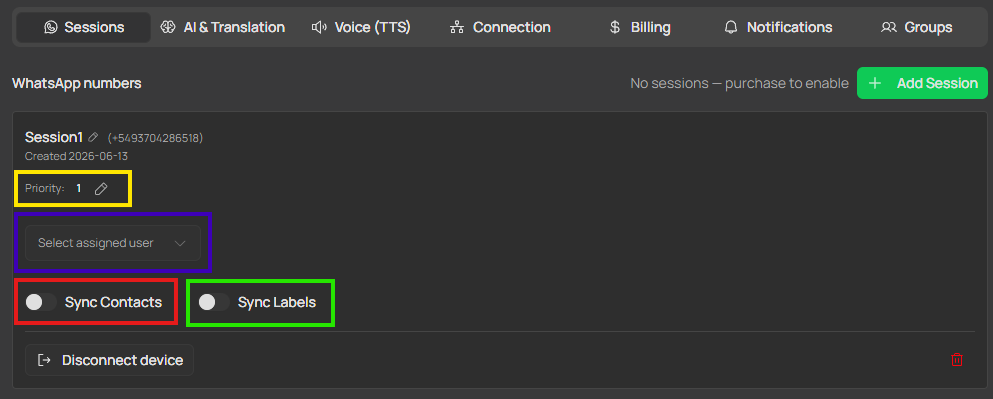
#WH2 in GHL, they refer to these same priority numbers — see Connection for routing details.Related
- Connection — outbound routing uses session priority from this tab.
- Onboarding — agency linking before first session.