Stripe and billing (agency)
Inside each agency row on /agencies, open the Stripe config tab.
This area is where agency-level payment setup and billing behavior are reviewed and managed.
What this tab is for
- Connect or review Stripe Connect status
- Check if charges and payouts are enabled
- Review subscription/billing context for the agency
- Access agency-level billing controls available to your role
Depending on permissions and platform setup, some controls may be read-only.
Typical workflow
- Open Agencies.
- Expand the target agency row.
- Open Stripe config.
- Complete missing Stripe steps (if pending).
- Refresh status and verify connected state.
Common statuses
- Connected: Stripe account is linked and active.
- Pending: account exists but still needs setup/verification.
- Not connected: no Stripe connection for that agency yet.
Stripe config screen
The screenshot below shows the Stripe config tab. Match each legend color to the same marker in the image:
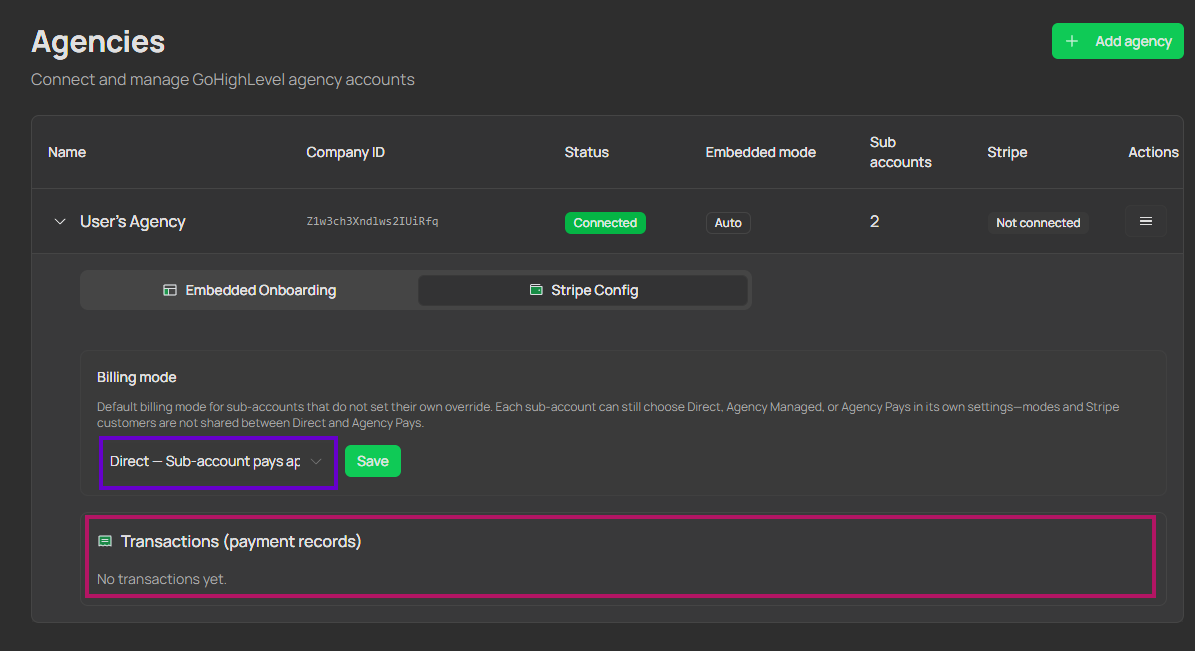
Billing mode selector (violet). This selector defines the global payment mode for sub-accounts under the agency. It is important to understand this is an agency-level default, but each sub-account can still have a different payment mode when that sub-account has a specific override/configuration.
Transactions section (pink). This area is intended to show agency payment transactions. Depending on product rollout and permissions, it may currently appear empty or partial and will be expanded in future updates.
Best practices
- Complete Stripe onboarding using only official in-app links.
- Recheck status after Stripe redirects back.
- Keep one owner in your team for agency billing operations to avoid conflicting changes.
Related
- Agencies — agency table, OAuth actions, and settings access.
- Onboarding — initial agency linking before Stripe setup.