Embedded onboarding settings
Inside each agency row on /agencies, open Embedded onboarding.
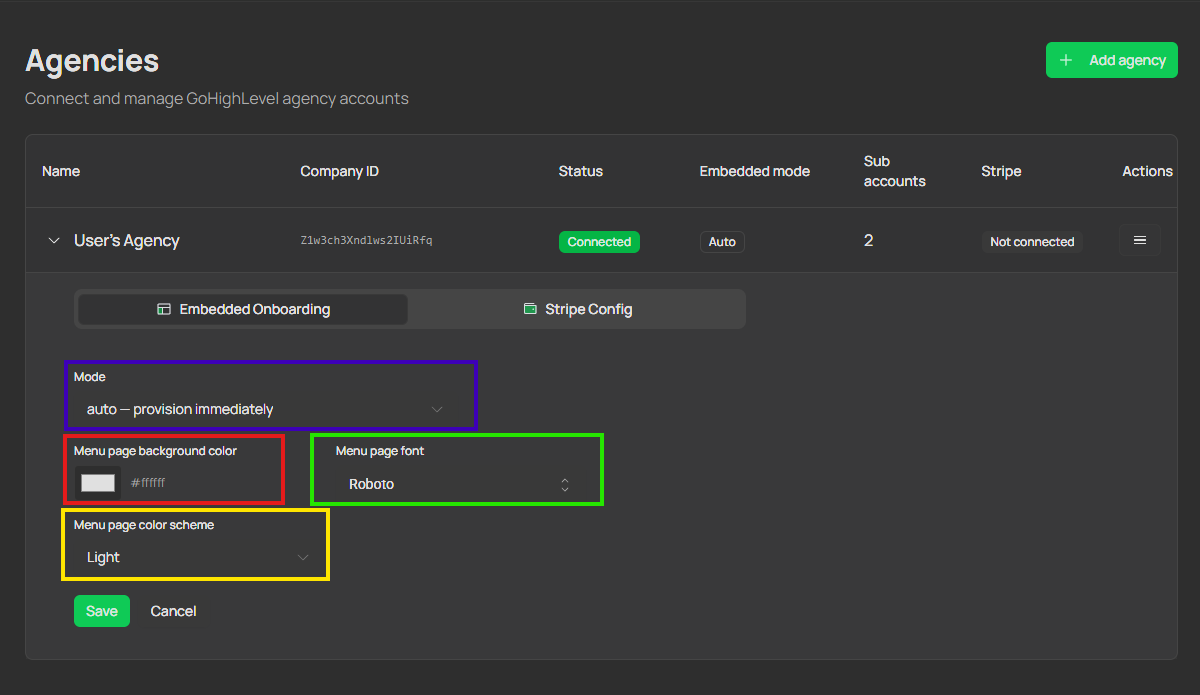
This tab controls what users see when they open WhatGHL inside GHL (/entry and /ghl-embedded/...).
Modes
- auto: system decides the next required step automatically.
- button: show a connect button style onboarding.
- paywall: show paywall screen with custom text and CTA.
Paywall fields (when mode = paywall)
- Title
- Description
- CTA label
- CTA URL
Use short, clear copy and verify links before saving.
Embedded visual theme
You can also configure embedded appearance for that agency:
- Menu background color
- Font (Google Fonts catalog)
- Color scheme (
light/dark)
These settings affect how embedded WhatGHL feels inside GHL.
Embedded onboarding screen
The screenshot below shows the Embedded onboarding tab. Match each legend color with the same marker in the image:
Save flow
- Expand agency row.
- Open Embedded onboarding tab.
- Adjust mode, optional paywall fields, and theme.
- Click Save.
Related
- Agencies — page overview and actions.
- Embedded use in GHL — how users experience these settings inside GHL.